Skip to content

Remembering how to map the key to a function in OpenOffice.org Writer

Yesterday, I installed the new version 3.0 of Open`Office.org. I had configured the old version of open office.org to map Ctrl-Q to insert a timestamp of the current time. (I’m using the key mapping from Ecco Pro.) It took me a little while to figure out how to do this configuration once again. Hence I made a little screencast to remind myself of how to do this task, should I have to do it again:

This was also an opportunity to remind myself how to make a rudimentary screencast using Camtasia Studio. In the future I have to learn how to create more sophisticated effects. I’m also looking into using Jing Project: Visual conversation starts here. Mac or Windows, not only because it’s free but actually might be more convenient for simple application. I must say that I’m tempted to upgrade my Camtasia Studio setup to version 1.5 because of its new Zoom-n-Pan Effects. have to download the new version and evaluate whether it’s worth the money to upgrade from version 4.0)

On a larger note, I can see making a lot more videos to document what I’m learning so that I can remember how to do things, will also teach others to perform some tasks. I think these videos will expand beyond recording the computer screen.

Tagged ,

Congrats to smARThistory!

Hearty congratulations to my colleagues Beth Harris and Steven Zucker for winning a prestigious international award for their newly redesigned smARThistory! I’m looking forward to studying the new site in detail — and learning a lot about art history while doing so. (I started reading the number of books on art history (including Julian Bell’s Mirror of the world : a new history of art) but haven’t yet gotten all the way through the books. I hope that the smARThistory site will give me a different and complementary perspective to these books.)

Tagged

Listing the URLs of all my current Firefox tabs using Chickenfoot

Here’s some code I figured out for doing so that I believe should work:

var tabBrowser = getTabBrowser(chromeWindow);
var tabs = tabBrowser.mTabBox._tabs.childNodes;

for (var i=0; i <tabs.length; i++) {
  var browser = tabBrowser.getBrowserForTab(tabs[i]);
  output(browser.contentWindow.location);
}

It took me a while to gather the pieces, and I’ll have to explain how I did it — but for now, let me just note the code here.

Tagged

How WordPress Sanitizes Tags and Attributes

Yesterday, I thought that my installations of WordPress did not allow the use of the class attribute in my span HTML elements. To fix the problem, I followed the trail of references leading from » WordPress Strips Classnames, And How To Fix It MaisonBisson.com. I learned that WordPress uses the kses PHP library to filter HTML of possibly invalid and non-secure constructs. It turned out that the kses configuration in WordPress 2.6.3 wasn’t responsible for filtering out the class attributes after all — it was the HTML editor in visual mode.

Tagged ,

Changing various annoying aspects of WordPress

Yesterday, I came across two behaviors of WordPress (v 2.6.3), that I wanted to change:

  • the HTML editor sanitizes code in a post if you use the visual editing mode.
  • WordPress changes regular single and double quotation marks into “smart quotes”, which causes major problems for snippets of code

One way to change this behavior is to edit some of the WordPress source code (the first issues could be resolved by edits described in WordPress Editor Fix to Stop Stripping or Changing Code and the second, by changes shown in phpied.com » Blog Archive » Smart quotes in WP).

However, I was hoping that someone had come up with an approach that would not involve changing WordPress code directly, such as writing up WordPress plug-in to make the change. In the second case (of disabling smart quotes), I did find and install the Unfancy Quote Plugin For WordPress, which “lets you override WordPress’ quote fancification”. In the first case, I was not able to find such an appropriate plug-in and so would have to write one myself. (WordPress › TinyMCE Advanced « WordPress Plugins might be close to what I want.)

Another possible approach is to mess with my-hacks.php — although that’s clearly a legacy approach. A final approach would be to stop using the visual editing mode altogether — that’s the workaround that I’ll use right now.

(I definitely would like to learn how to write a WordPress plug-in (Writing a Plugin « WordPress Codex) — though not today. There’s a good chance I will want to render my mashup book in the form of a WordPress site — and I figure I’ll have to write a plug-in or two to make that happen.)

Tagged

Accessing Zotero via Chickenfoot: a warm up exercise

I’m currently learning how to program Zotero, specifically how to integrate Zotero with other applications. I document my learning experience to make it easier for others to learn what I’ve learned. Note that I’m still learning (I’m far from an expert) — so I think my advice will improve over time. But it decided not to wait until I am an expert before I share my experiences.

You can write Zotero plugins (a Firefox extension that accesses the Zotero extension) as a way of extending Zotero — see plugins [Zotero Documentation].

In a series of posts, I would like to explore how to use Chickenfoot as a scripting framework for Zotero and as a way to explore a working Zotero instance. Why Chickenfoot? Chickenfoot is appealing because it’s the closest thing we have to a Web automation framework running within a web browser — and hence something that can take advantage of all the scriptability and context of the Web browser. (Besides, much of the work we do with Chickenfoot will be transferable to writing a Zotero plug-in.)

A goal I’ve set for myself to focus my learning — and to provide a narrative for the series: create a Chickenfoot script to grab all the references I added on a given date and format those items to be sent out as HTML, wiki formatting, and to be uplaoded to some social bookmarking systems, including delicious and Connotea.

Note: I’m using v 1.0.7 of Zotero, running on Firefox 2.0.0.17 on Windows XP. I’m also using Chickenfoot v 1.0.4. I assume that you will have some basic knowledge of JavaScript and Firefox extensions. (I plan to provide more background later.) The overall approach we take here is a combination of experimenting with bits and pieces of source code, combined with reading the original Zotero source code.

In this first post, we warm up by studying how to access with Chickenfoot Zotero and ZoteroPane, two important Zotero objects, and perform some basic tasks with them.

First, the Zotero object is arguably the main JavaScript object, one that gives you access to the underlying functionality of Zotero. You can access it in this way (see include.js):

var Zotero = Components.classes["@zotero.org/Zotero;1"].
getService(Components.interfaces.nsISupports).wrappedJSObject;

or, in the context of Chickenfoot script:

var Zotero = chromeWindow.Zotero;

(See Rewrite the Web with Chickenfoot [JavaScript & Ajax Tutorials] for a description of the chromeWindow, which is the top-level object of the Firefox browser.)

From a thread on the Zotero forums, I learned an incantation (courtesy of Dan Stillman) to access the ZoteroPane:

var wm = Components.classes["@mozilla.org/appshell/window-mediator;1"]
.getService(Components.interfaces.nsIWindowMediator);
var browserWindow = wm.getMostRecentWindow("navigator:browser");
var ZoteroPane = browserWindow.ZoteroPane;

It turns out but you can also use chromeWindow to get at ZoteroPane:

var ZoteroPane = chromeWindow.ZoteroPane;

What can we do with Zotero and ZoteroPane?
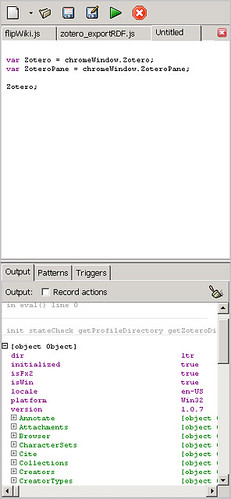
Zotero object in Chickenfoot
The first thing to do is to examine the two objects. You can examine them the output panel by toggling the output variable to see the children of the output object. For example, if you run the following code, you can get a list of all the children of Zotero and ZoteroPane:


function list_props(obj) {
var name, props;
var props;
props = "";
for (name in obj) {
props = props + " " + name;
}
return props;
}
var Zotero = chromeWindow.Zotero;
var ZoteroPane = chromeWindow.ZoteroPane;
list_props(Zotero);

to generate the following list:


init stateCheck getProfileDirectory getZoteroDirectory getStorageDirectory getZoteroDatabase chooseZoteroDirectory debug log getErrors getSystemInfo varDump safeDebug getString localeJoin getLocaleCollation setFontSize flattenArguments getAncestorByTagName join inArray arraySearch arrayToHash hasValues randomString getRandomID moveToUnique initialized skipLoading startupError startupErrorHandler Prefs Keys Hash Text Date Browser UnresponsiveScriptIndicator WebProgressFinishListener JSON DBConnection DB Schema Item Items Notes Collection Collections Creators Tags CachedTypes CreatorTypes ItemTypes FileTypes CharacterSets ItemFields getCollections Attachments Notifier History Search Searches SearchConditions Ingester OpenURL Translate Cite CSL QuickCopy Report Timeline Utilities Integration File Fulltext MIME ItemTreeView ItemTreeCommandController CollectionTreeView CollectionTreeCommandController ItemGroup ProgressWindowSet ProgressWindow Annotate Annotations Annotation Highlight version isFx2 isFx3 platform isMac isWin isLinux locale dir Maps IconFactory

Calculating the number of top level items

The following simple Chickenfoot script returns the number of top-level items in my Zotero collection:


var Zotero = chromeWindow.Zotero;
var items = Zotero.Items.getAll(true);
items.length + 1;

Toggle the Zotero Panel

The following two-liner shows how to turn the Zotero display on and off (equivalent to hitting Ctrl-Alt-Z)

printing the title of the first selected item

Finally, a three-liner to print out the title of the first selected item:


var ZoteroPane = chromeWindow.ZoteroPane;
var selectedItems = ZoteroPane.getSelectedItems();
var title = selectedItems[0].getField("title");
title;

Conclusion

This post is meant only to lay the foundation for the ultimate goal which is to integrate Zotero and other systems using Chickenfoot. I hope it also whet your appetite for more — and if you’re a Zotero user, that you would go right away to install Chickenfoot to explore Zotero in a deeper way.

Tagged ,

manipulating EXIF headers on the command line

This afternoon, I undertook some fall cleanup of my computer’s hard drive, a task but became urgent as I start running out of space. Last night, I ran WinDirStat – Windows Directory Statistics to figure out what was hogging up the disk space. I was not surprised to learn my photos, videos, and podcasts ( which I was downloading from iTunes, sometimes indiscriminately) were taking up gigabytes. Every time I buy a new digital camera, I end up taking high-resolution photos, which just exacerbates the problem.

As I was cleaning up my hard drive and backing up photos to an external drive, I found a lot of old photos that I had yet to upload to Flickr. I work hard to properly timestamp my photos so that I can make use of Flickr’s ability to let me browse my photos by not only when I upload them but also when I took them. The key is to have the right timestamps in the EXIF headers of my photos. Flickr would then read and use those headers to figure out when the pictures were taken.

The problem is that some of my photos, specifically the ones that came from an old webcam, did not have a timestamp in the EXIF headers. In that case, I could still upload the photos into Flickr and then manually adjust each of the photo’s timestamps using Flickr. To avoid using such a tedious and error-prone process, I had written a script in Python that would write the EXIF timestamp from each photo, using the modification date of the photo as an approximation for when the photo was taken.

The last time I looked, I could not find a Python library for doing extensive EXIF manipulation. I ended up trying to different commandline utilities: jhead and exiv2. Today, I modified my script to use exiv2. Let me record a few one-liners that I found useful for the task:

exiv2 filename

reads off the EXIF headers for the file

exiv2 -pt filename

writes out in fuller detail the EXIV headers

exiv2 -da filename

deletes the EXIF headers

exiv2 -k -M"set Exif.Image.DateTime Ascii 2002:01:02 22:15:26" Pict0001.JPG

sets the timestamp for Pict0001.jpg while preserving the file timestamp.

What I’d like to find out now is how to write a timestamp into a video file? My understanding is that EXIF doesn’t apply to video files — so what is EXIF for video?

Tagged , , ,

My talk at the Library of Congress about web mashups

The talk I gave recently at the Library of Congress on web 2.0 mashups might be of interest to you all. The recording of the talk is available now from the LC site:

http://www.loc.gov/today/cyberlc/feature_wdesc.php?rec=4346

I tried not to be to be too technical while working in some technical details on the side for those in audience who wanted to know more.

Tagged , ,

Sorin Matei on Project Bamboo and the role of mashups

Project Bamboo has been on my list of stuff to write about for a while. According to Project Bamboo website:

    Bamboo is a multi-institutional, interdisciplinary, and inter-organizational effort that brings together researchers in arts and humanities, computer scientists, information scientists, librarians, and campus information technologists to tackle the question: How can we advance arts and humanities research through the development of shared technology services?

Not only is the project of intellectual interest to me (as someone deeply interested in the issues of “shared technology services”) but also of great personal interest (since I know quite a few of the personnel involved with the project, including one of the co-project directors, David Greenbaum, who used to be my boss.) One particular angle I hope to explore is answering the question of what are the implications of Project Bamboo on Zotero and vice-versa?

The immediate prompt for this post is Sorin Matei’s The Bamboo Digital Humanities Initiative: A Modest Proposal. Matei’s post has been of sufficient interest to me that I using it to prompt some discussion in a community of humanists and technologists. Matei makes a lot of useful points, but the segment that caught my attention is:

    The role of the Bamboo platform would be to simplify this task by making access to tools, by enhancing our ability to connect digital objects and artifacts, our ability to connect with colleagues and students via simple, directly intuitive and universally available interfaces that all converge on the scholars’ desktop, preferably in the format of a word processor. [emphasis mine] Moreover, the platform should integrate in the most straightforward manner the learning and writing processes with those dedicated to publishing. This should be done in such a manner that dedicated genres and modus operandi (articles, book monographs, peer review, scientific validity checks, etc.) would survive, flourish even, under the new digital regime.

Amen. That’s an approach I’ve been pursuing for a while now (in the Scholar’s Box, for example)– and one I think that Zotero, as a desktop client, with some capacity for extensibility, can embody rather deeply.

Matei goes on:

    I stop here, rather abruptly, waiting for reactions. I am planning, however, to release a sketch of such a platform, including essential services and affordances. It will also try to leverage the idea of the mashup editor as basic architecture strategy, which could be use to support the infrastructure of the system.

I’m naturally intrigued as someone focused on mashups and interested in developing “Zotero as a mashup platform”. Has Sorin Matei used Zotero? How would Zotero fit in with Matei’s sketch of such a platform?

Tagged ,

Notelets for 2005.05.20

As I prepare my JCDL 2008 Tutorial (Creating and Enabling Data Mashups), might I make use of Eric Lease Morgan’s XML in libraries: A workshop?

Of note is an upcoming workshop aimed at libraries — CARL-IT North: Mashup the Library: An introduction to mashup technology and the art of remixing library and information resources.

codepad:

    codepad.org is an online compiler/interpreter, and a simple collaboration tool. Paste your code below, and codepad will run it and give you a short URL you can use to share it in chat or email.

I’d like to experiment with it to see whether it’s a good place to paste code fragments that I want to share (and run!). I also want to think through how it sandboxes runnable code.

Tagged , , , ,